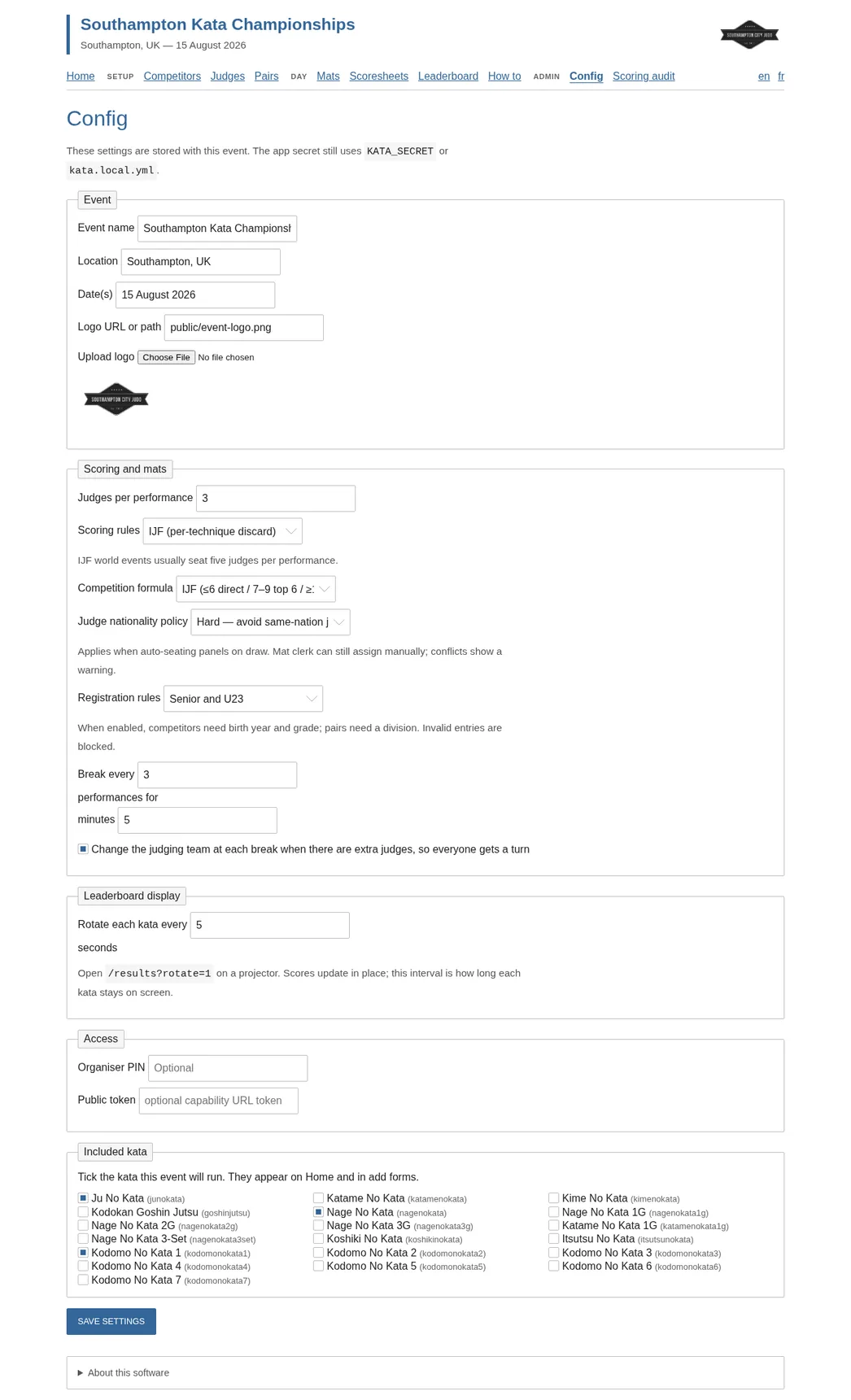
Config
Before anyone walks in, set the event name, location, dates, and logo. Choose how many judges sit a performance, schedule breaks, decide whether the judging team rotates, and tick the kata this event will run. You can also set an organiser PIN, create public links for tablets and displays, choose how long each kata stays on a rotating results screen, and pick the live-screen language — English, French, or German — remembered for each browser session.
Event rules live here too. Pick EJU, kata-judge/BJA-style, or IJF scoring independently from the current or IJF competition formula. Nationality policy controls how the draw prefers judges from outside the pair’s countries, while optional Senior and U23 registration rules turn on the corresponding age, grade, division, and entry checks.
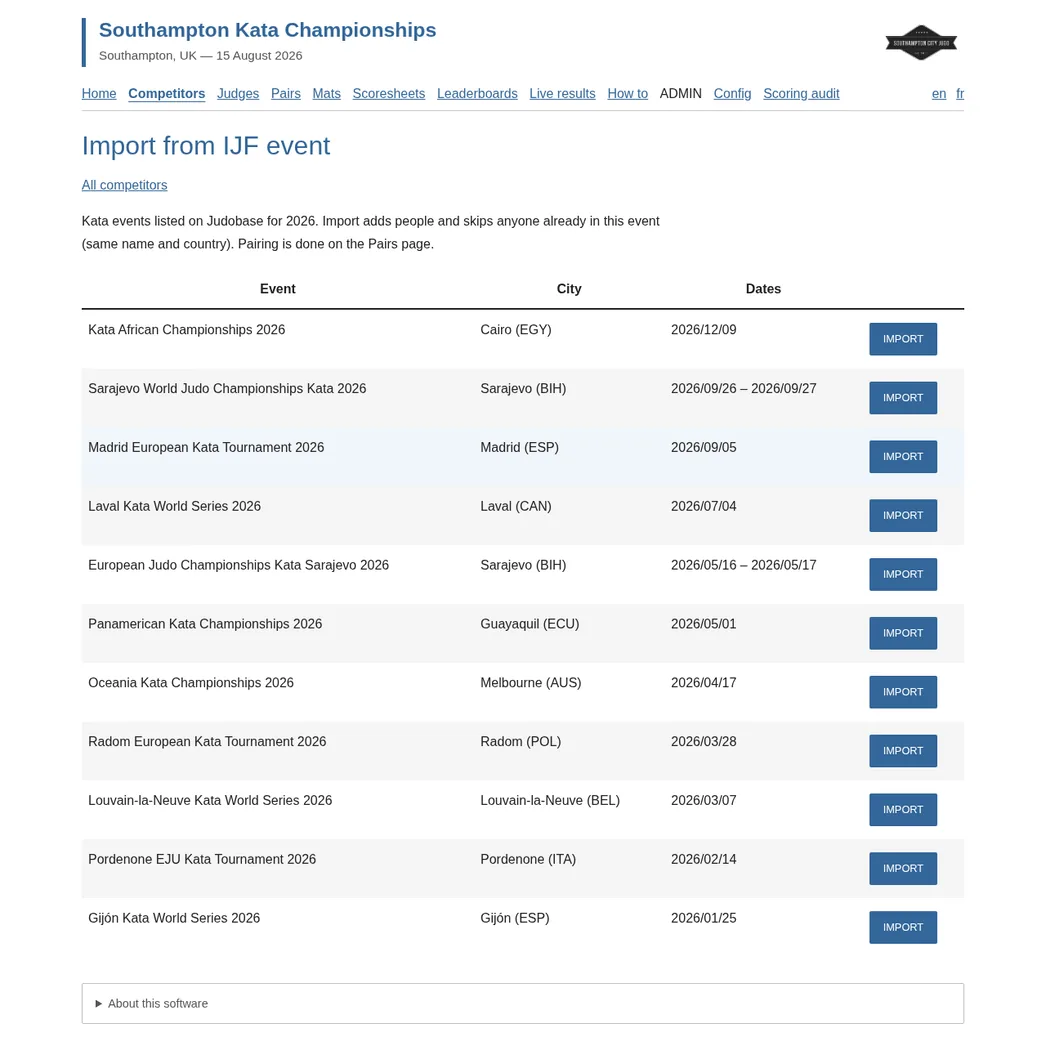
Competitors
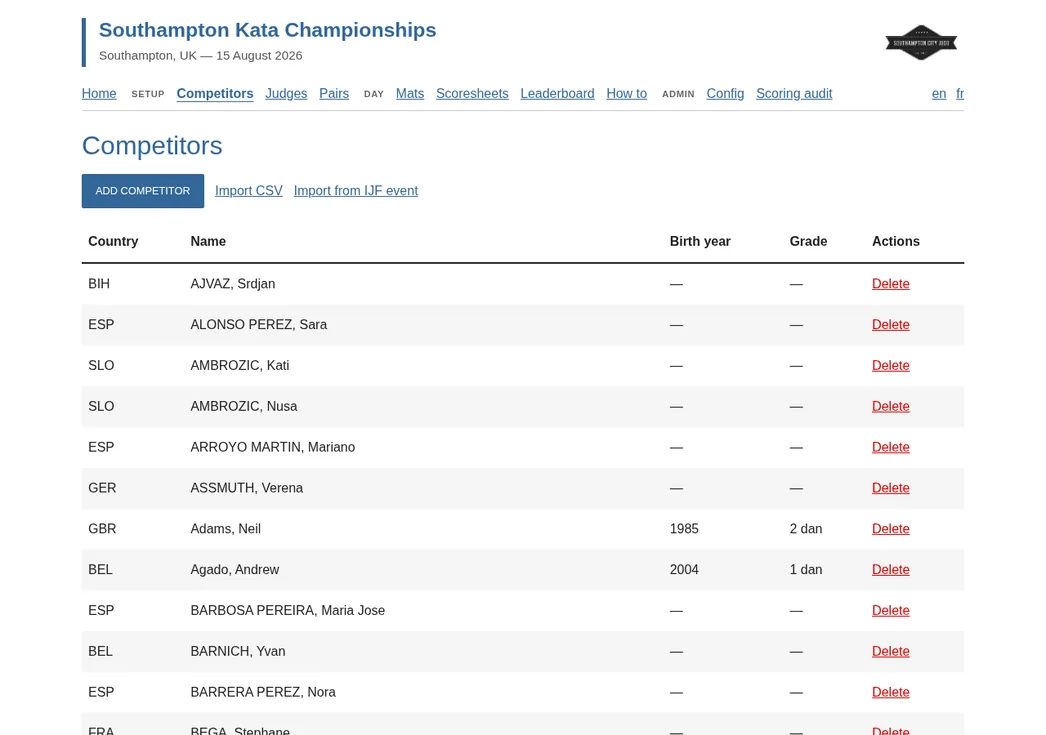
Register competitors through the web UI, CSV import, or from this year’s
IJF kata events on Judobase. The CSV header starts with
"Country","Given Name","Surname" and can include
"Birth Year","Grade". Judobase import adds people and
skips anyone already in this event with the same name and country.
When Senior or U23 registration rules are switched on, birth year and grade become required and invalid entries are blocked before they reach the draw. Judobase cannot supply those two fields, so leave registration checks off for that import, or enter competitors manually or by CSV.
Senior requires both partners to be at least 16 and 1st Dan, with one Senior pair per person. U23 requires both to be 16–22 and at least 1st Kyu, allows Nage-no-Kata, Ju-no-Kata, or Katame-no-Kata, and permits up to two U23 pairs per person. Leave the setting off for ordinary club-event entry.
Pairs
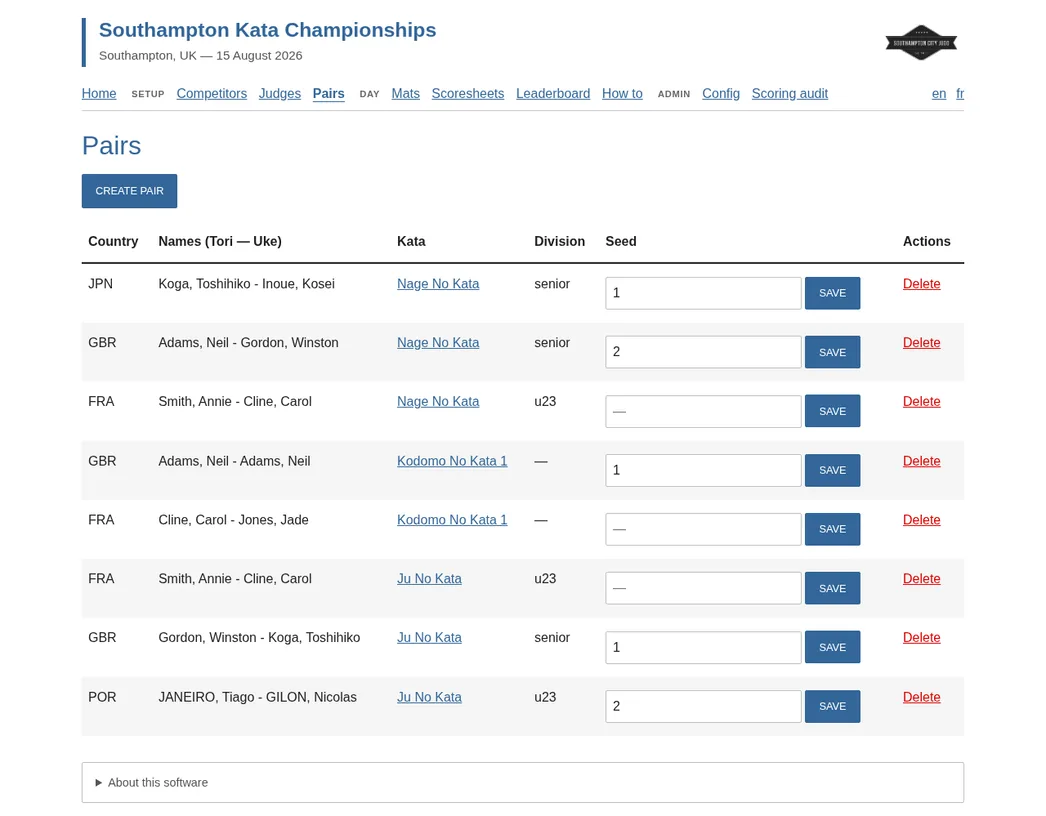
Form tori and uke pairs for each kata. When registration checks are on, choose Senior or U23 for the pair; the application checks both partners’ calendar-year age and grade, the permitted kata, and the entry limit for that division.
You can also give previous medallists an optional seed rank. In a two-group preliminary the draw spreads the seeds across the groups, but in performance order the unseeded pairs are shuffled first and the seeded pairs go last, so seed #1 performs last.
Judges
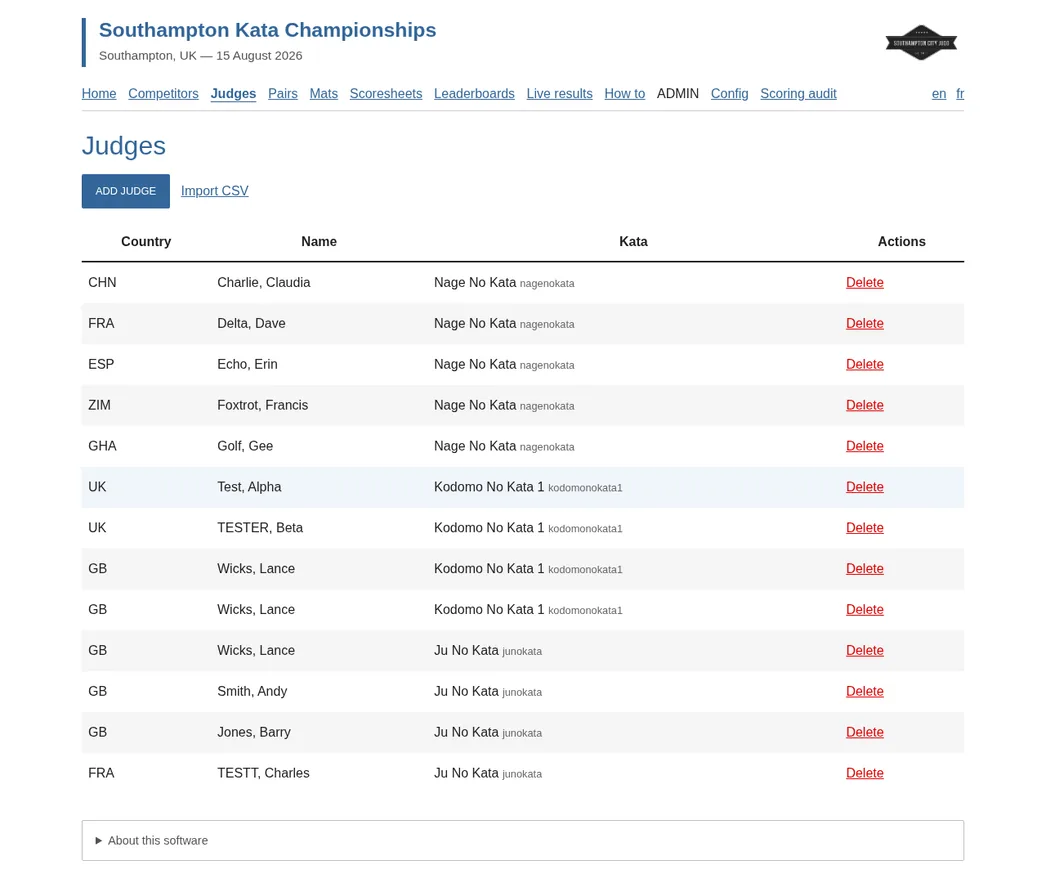
Add judges per kata, or import them from CSV with
"Country","Given Name","Surname","Kata" (use the kata
code, for example nagenokata). You need at least the
number of judges per performance selected in Config.
Draw
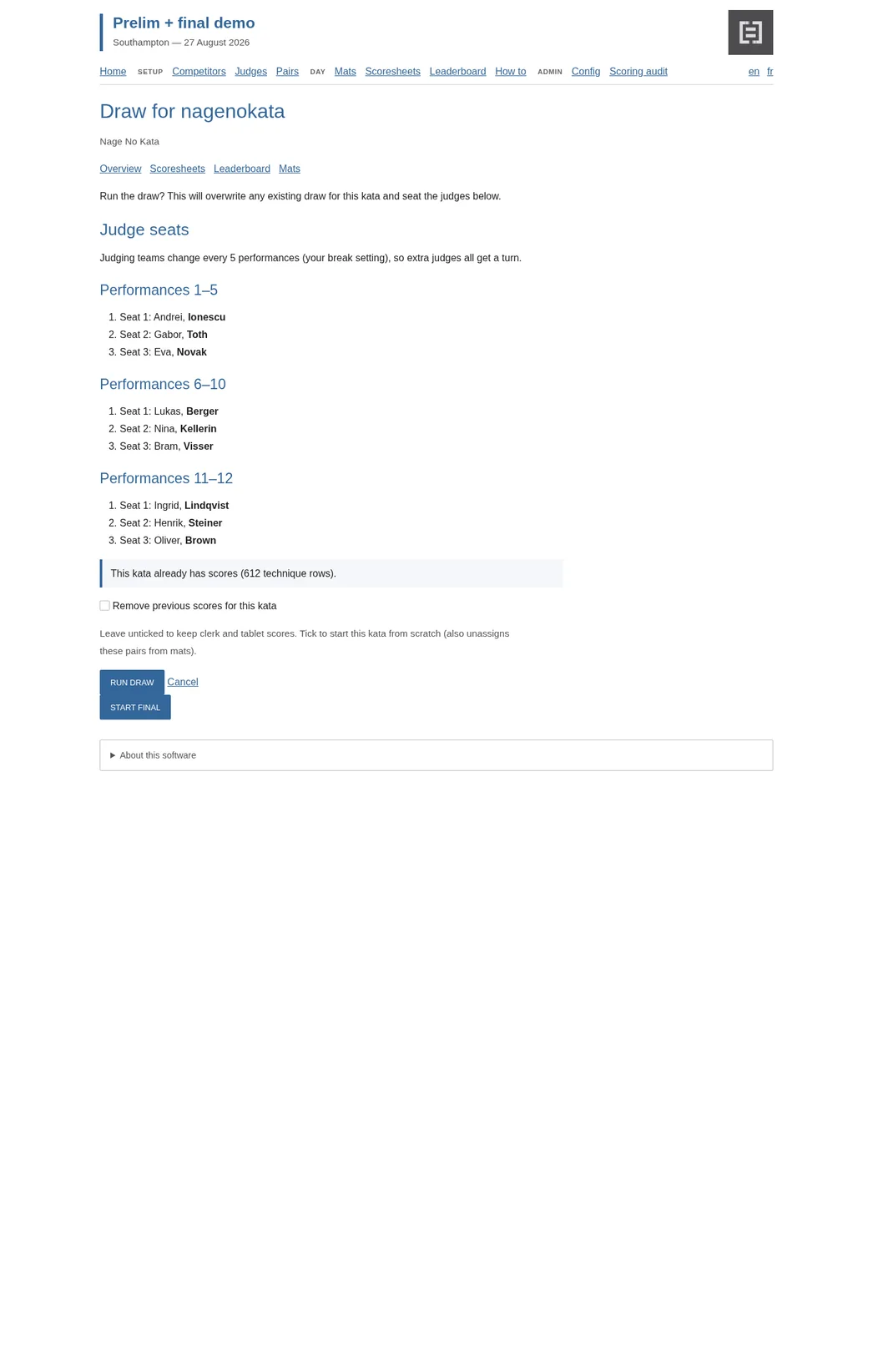
Run an automated draw for performance order and seated panels. You can keep the current formula — up to 6 pairs go straight to a final, 7–11 use one preliminary with the top 4 advancing, and 12 or more use two groups with the top 3 from each — or select the IJF formula: up to 6 direct, 7–9 with the top 6 advancing, and 10 or more in two groups with the top 3 from each.
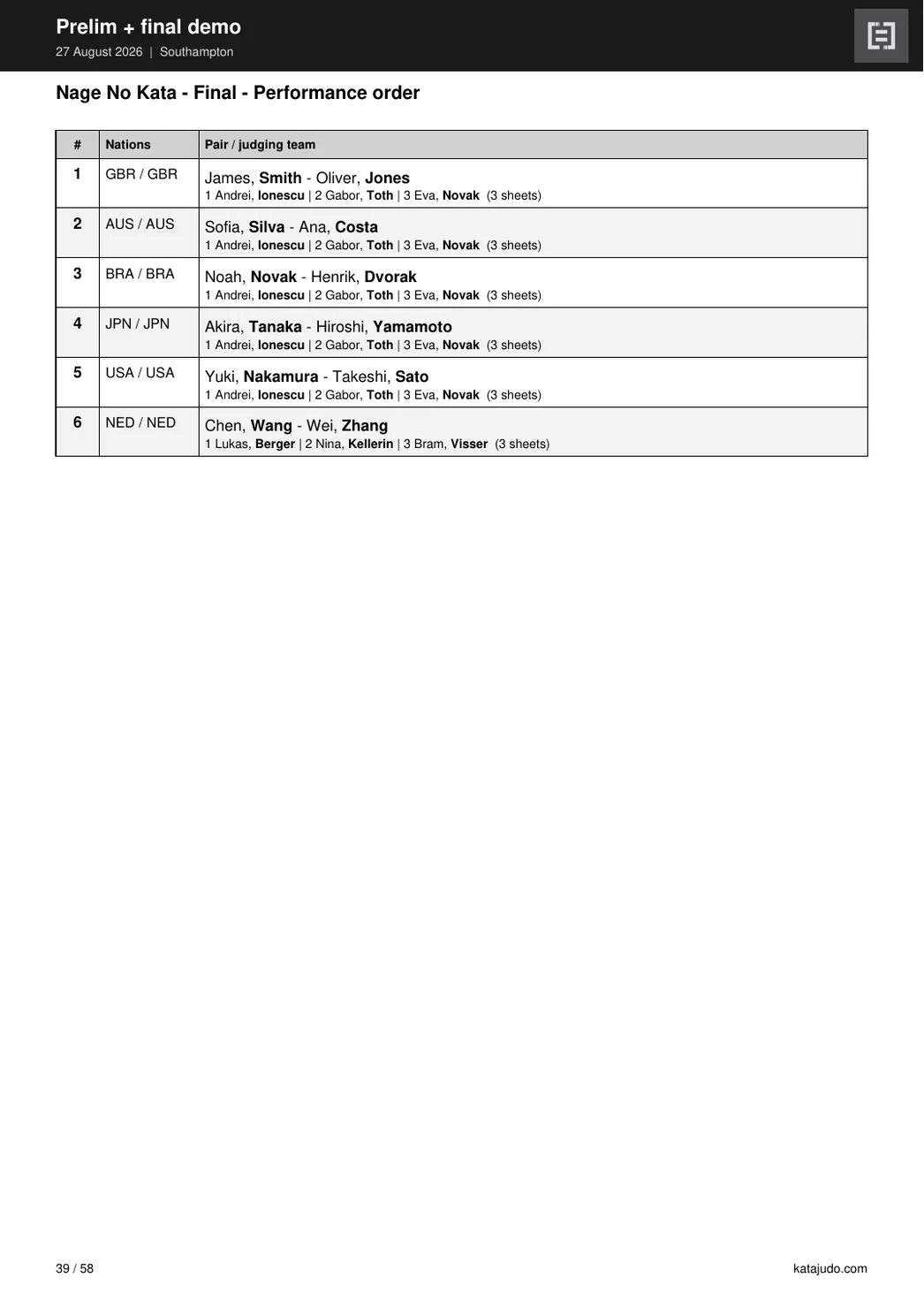
Unseeded pairs are shuffled first; seeded pairs are placed last in performance order, so seed #1 performs last. In a two-group preliminary the seeds are also spread across the groups. When judges are seated automatically, the configured nationality policy prefers officials who do not share tori or uke’s IOC country. Running the draw again overwrites that kata’s order, with an optional wipe when you also need to remove scores already entered.
Run the draw in front of the field with the ceremony console: the hall display for the projector shows the title page, field briefing, and overview, then animates each kata’s draw live over SSE. Ceremony draws are saved like any other, the console can jump between kata, and the hall sound can be muted from there.
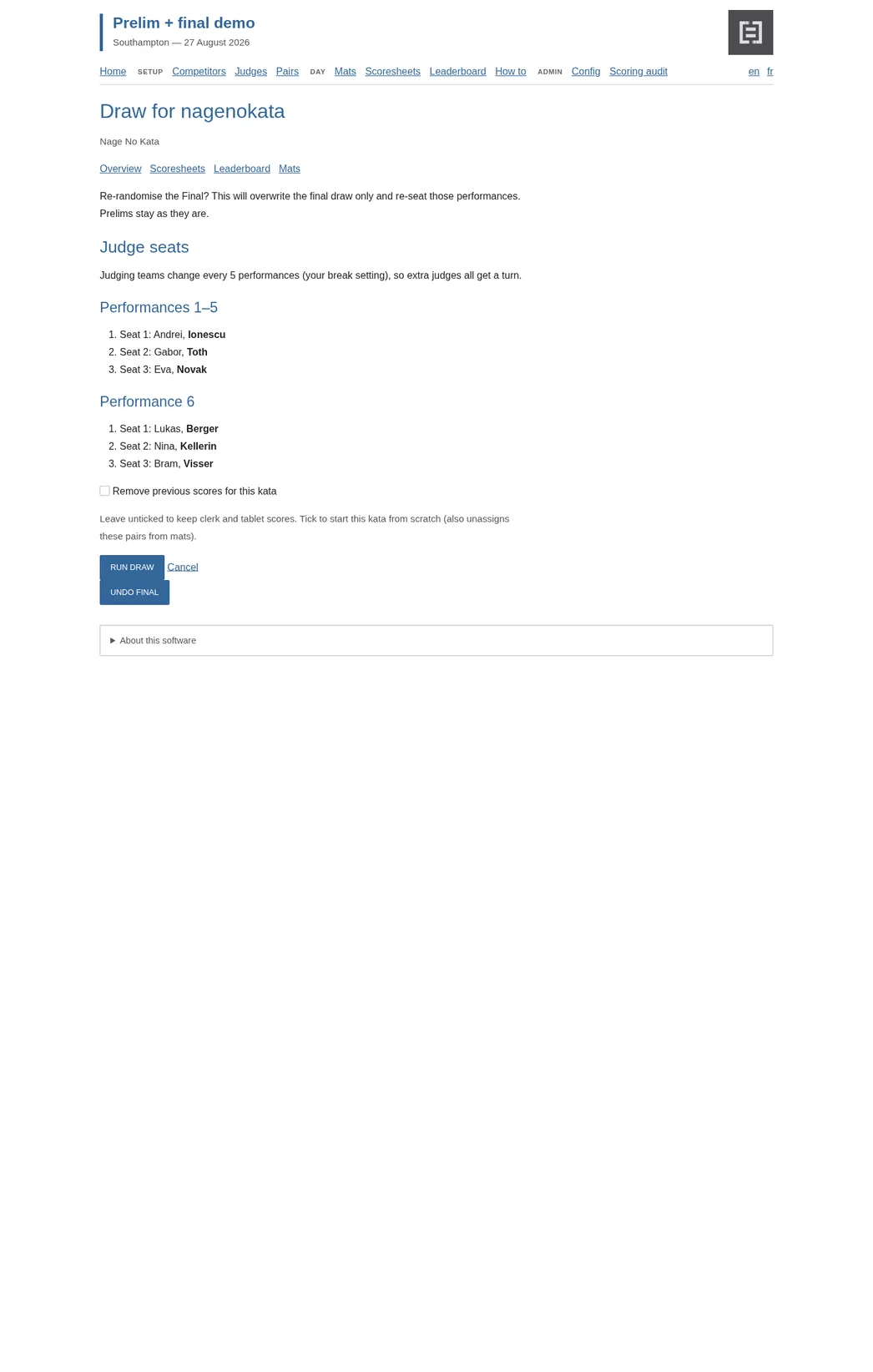
When the formula uses one or two preliminary rounds, a Start final button appears on the draw page once every prelim pair is complete. Direct finals of six or fewer pairs skip this — there is only one round.
Prelim to final
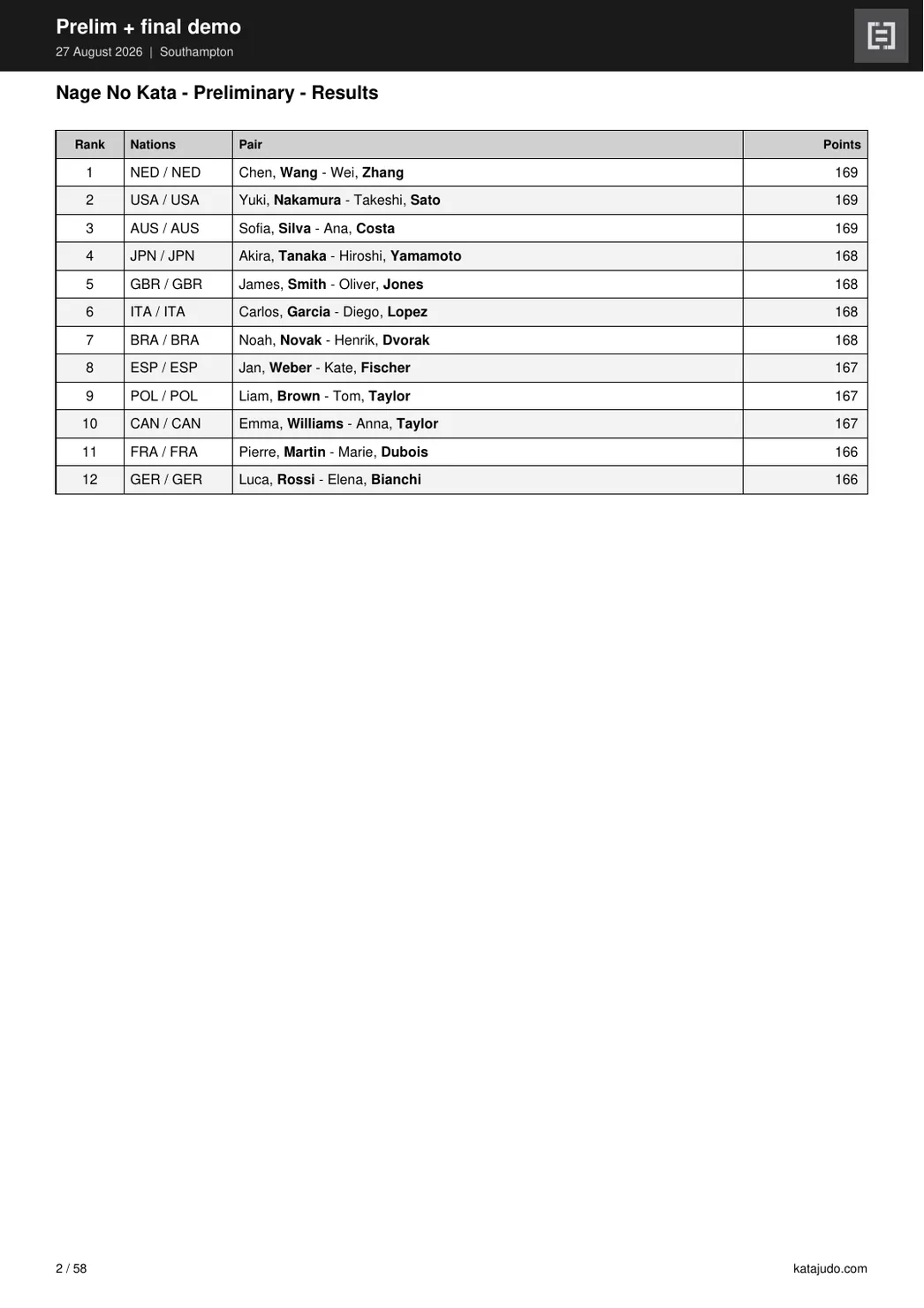
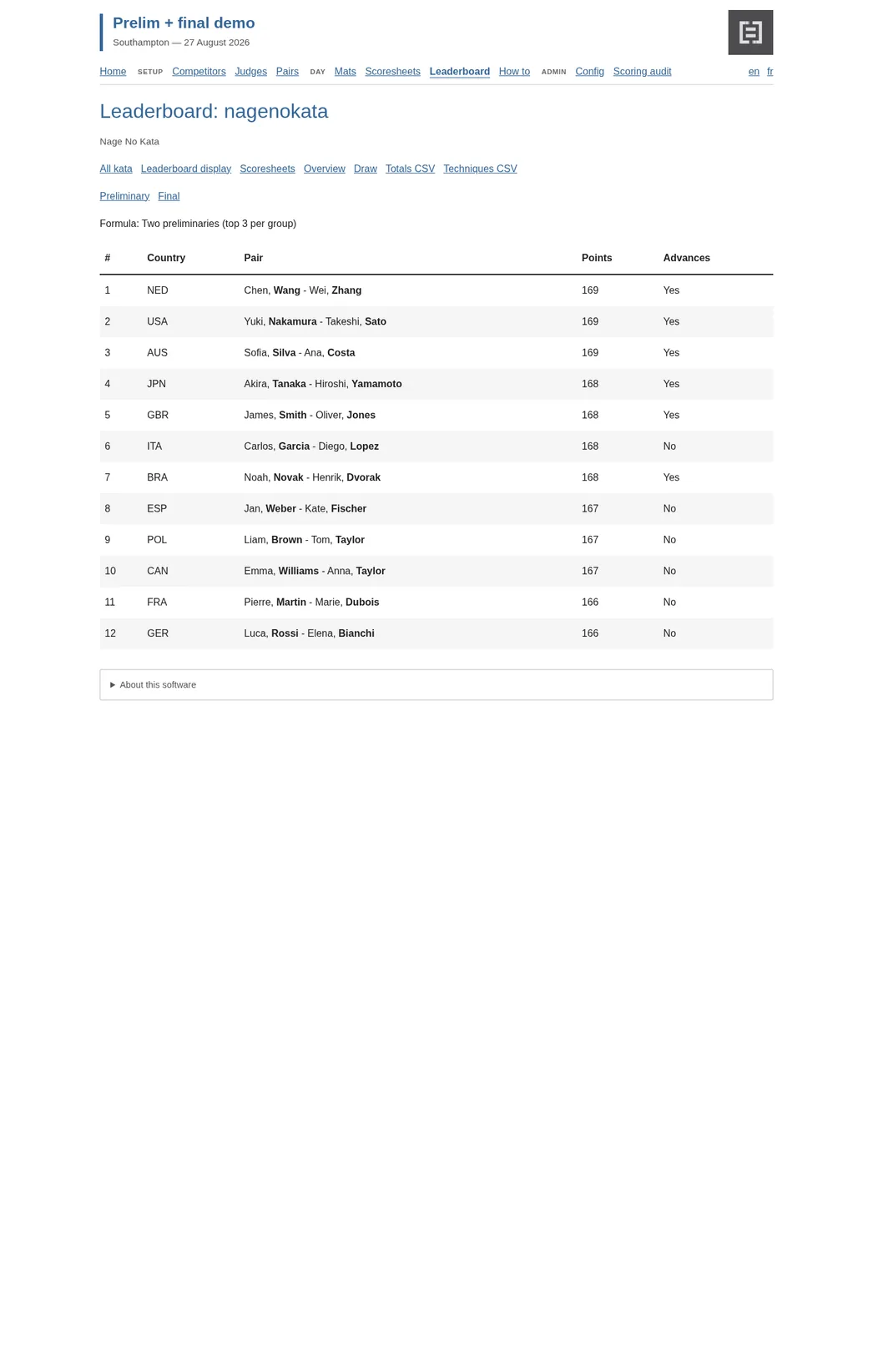
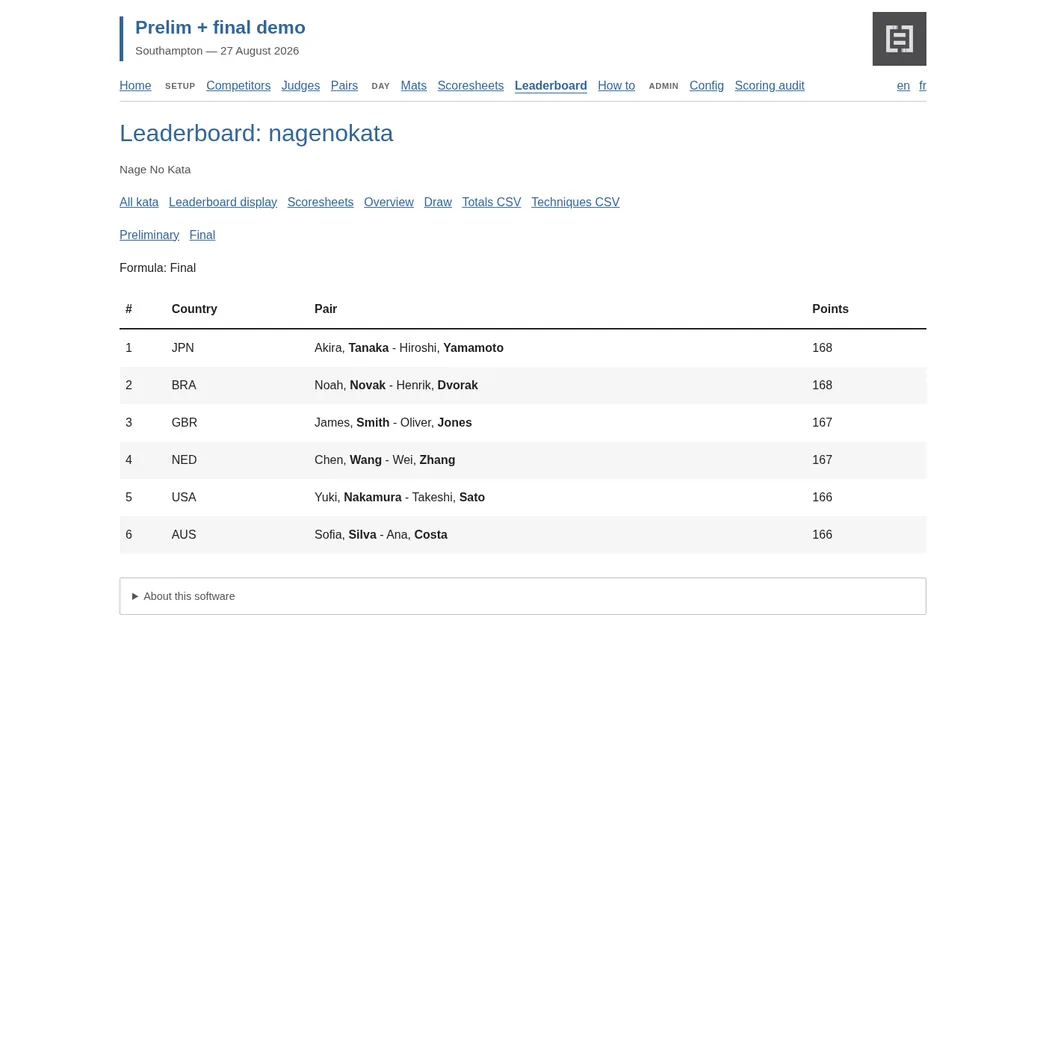
After prelims, the clerk starts the final from the draw page. The system picks the advancers from prelim scores only, re-randomises their performance order, re-seats the judges, and switches live mats, tablets, and the hall board to the final queue. Prelim draw, scores, and mat history stay untouched.
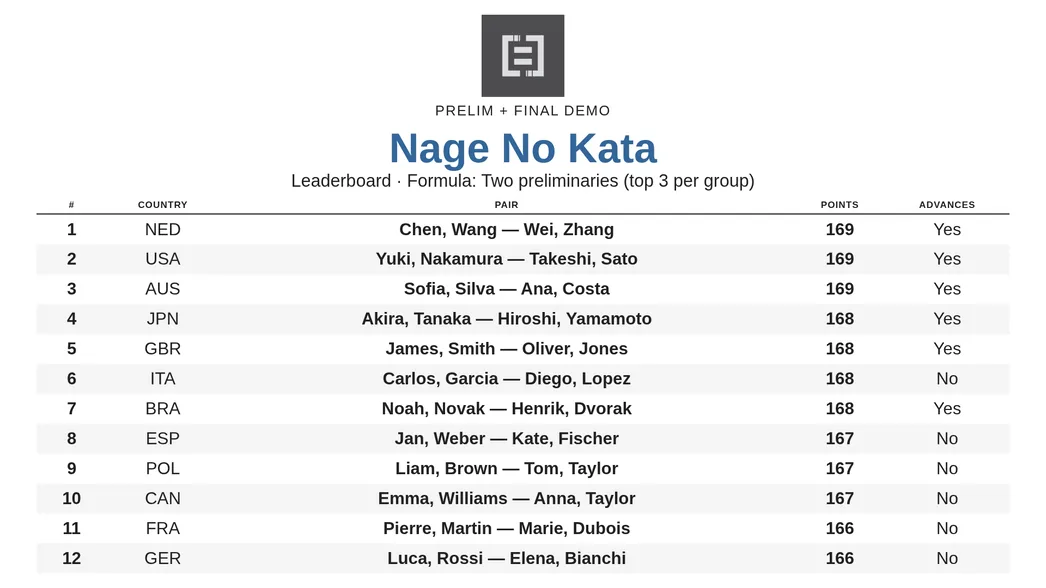
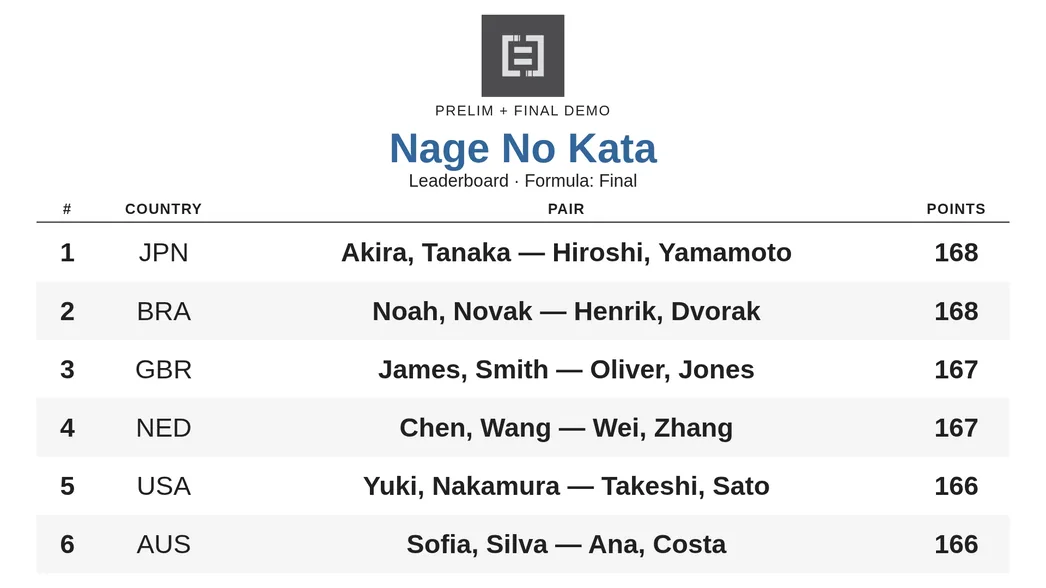
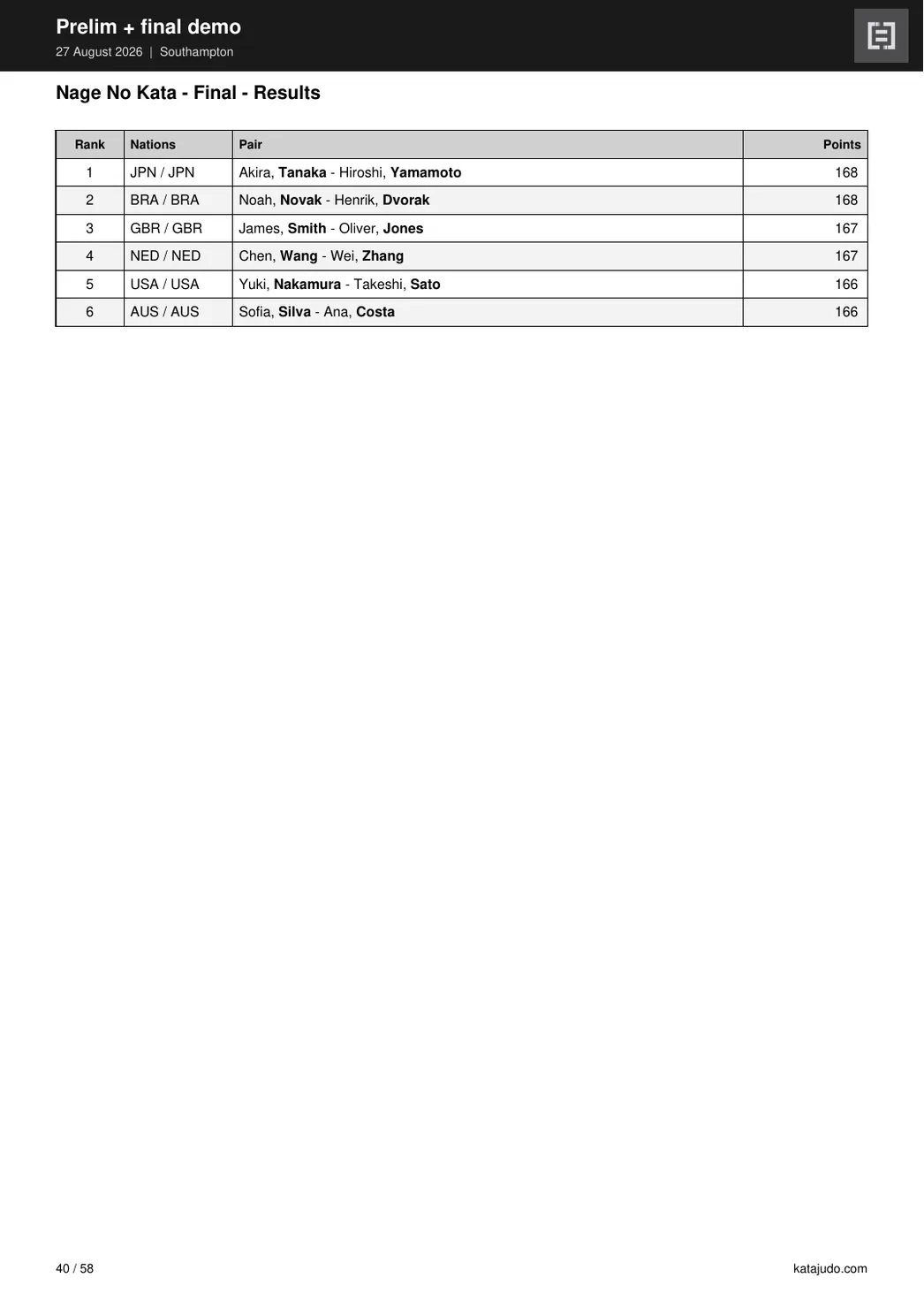
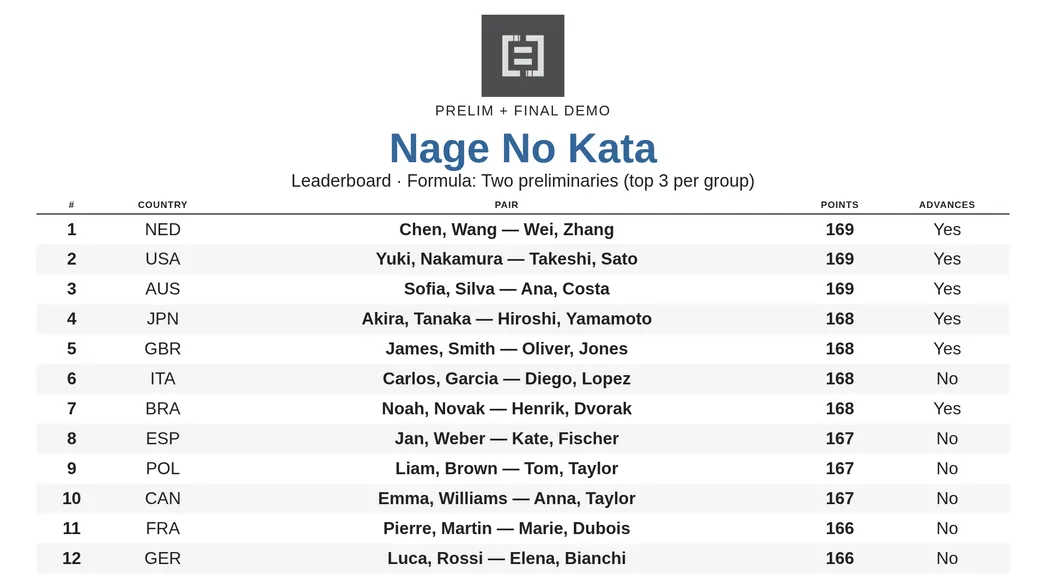
Medal totals come from the final round only. The hall results screen shows Final as the formula kicker and lists the six (or four) finalists without an Advances column. The clerk leaderboard keeps Preliminary and Final tabs so you can still read who qualified and who was cut. If no final scores have been entered yet, you can undo the switch from the draw page.
Mats
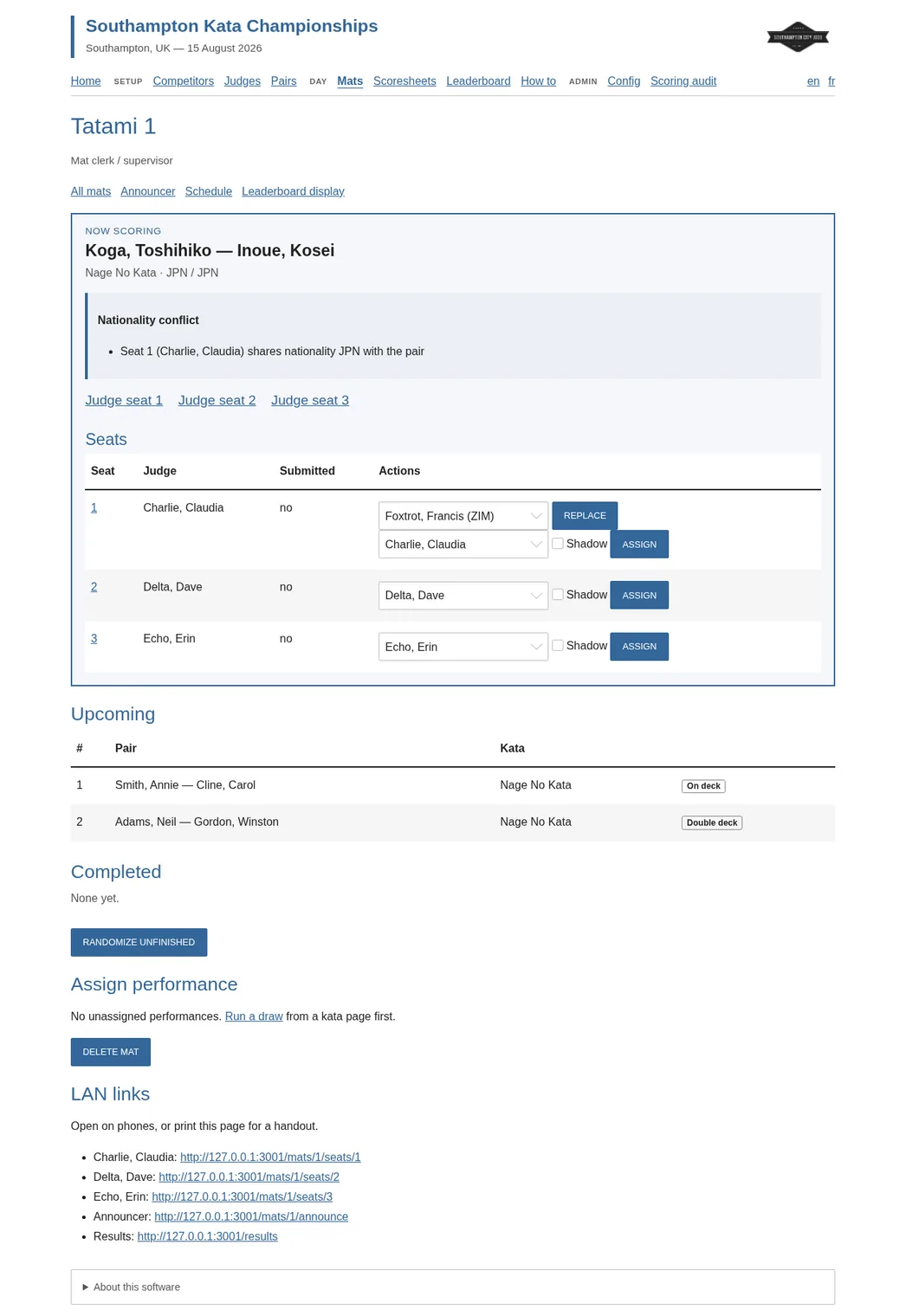
Add a tatami, then assign performances in the order you want them to run. Performances can be unassigned again or moved between mats on the schedule page, where you can also set the mat start time. The clerk page shows a panel for every tatami. The PIN-protected mat clerk acts as the event-day supervisor, showing who is scoring now, who is on deck and double deck, completed performances, judge seats, and links to edit scores.
If an official judge shares tori or uke’s IOC country, the clerk sees a warning and can choose an eligible replacement for this performance only. A seat with submitted or saved scores must be unsubmitted first. Shadow seats remain available for judge development and do not count in either the total or the nationality rule.
Judge tablets
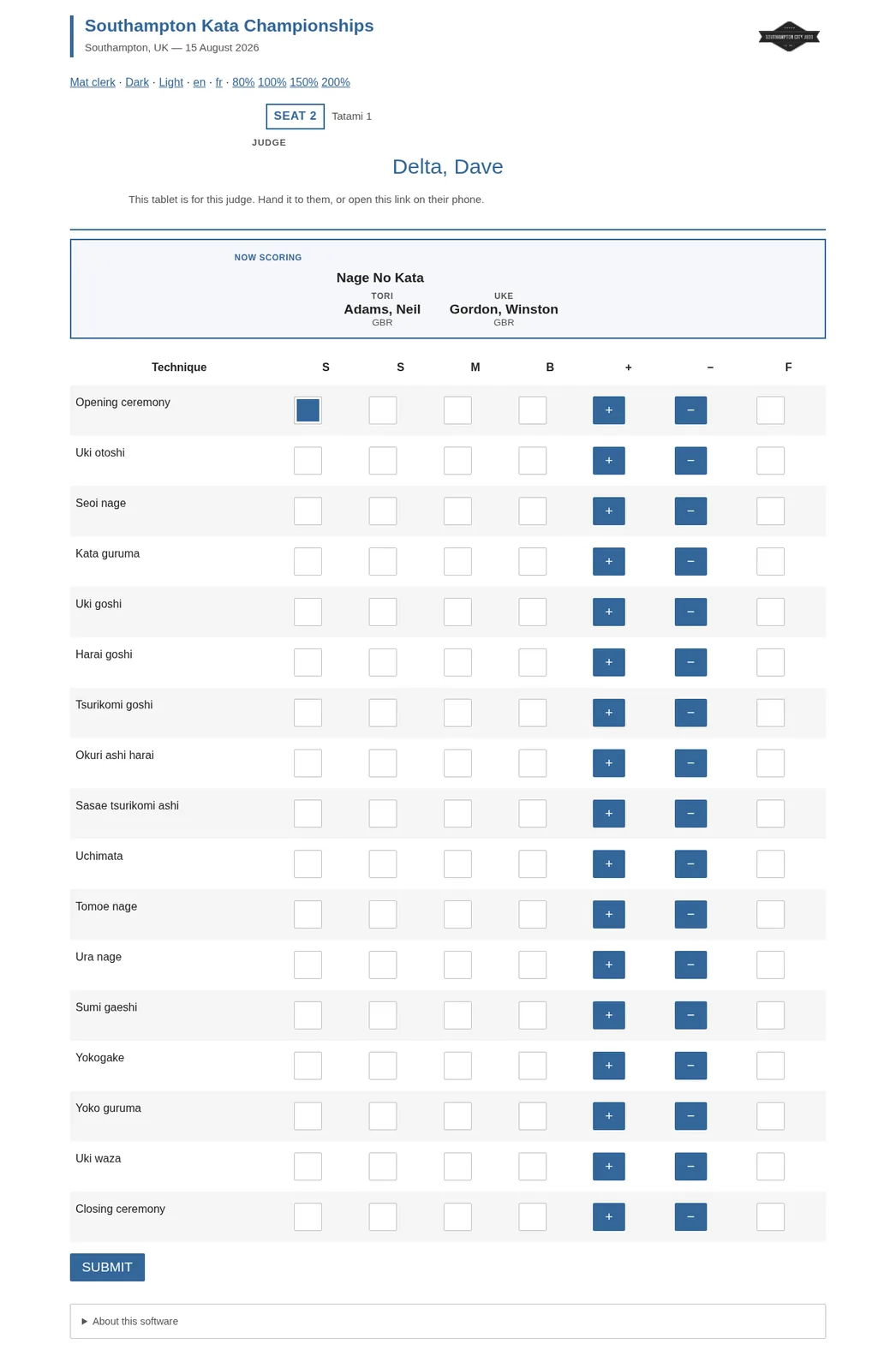
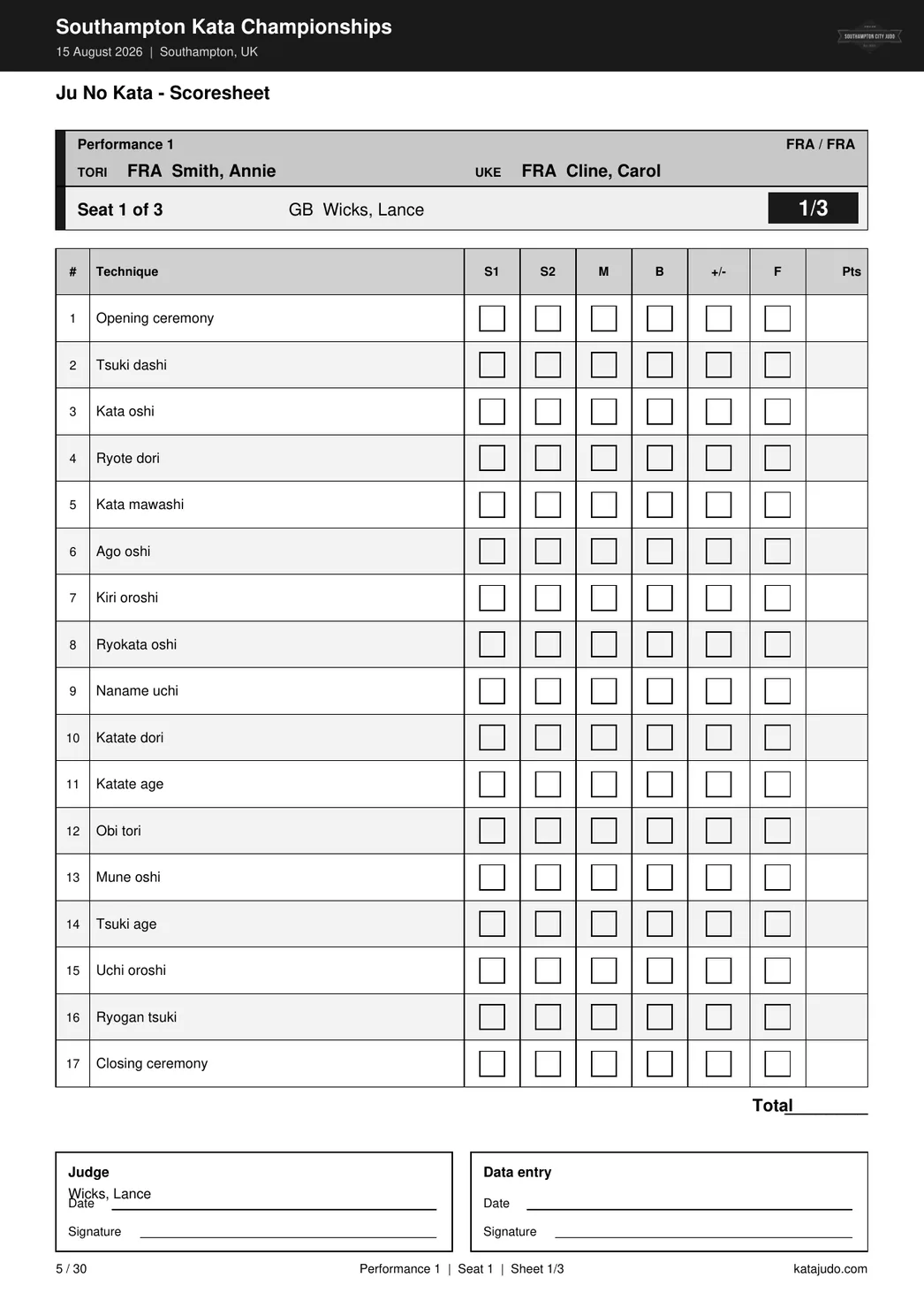
Each seat URL is one named judge. The tablet shows the seat, the judge’s name, the kata, and tori and uke. For every technique, tap small (S), medium (M), big (B), forgotten (F), and +/− correction. Each tap is saved immediately — overview progress, live results, and leaderboards update with provisional scores and an in-progress marker. Submit once the kata is finished — you will be asked to confirm — to lock that seat. After submit the seat waits until the other official seats submit, then the mat advances. The tablet updates in place when the mat changes. Tablets have dark/light and zoom controls, and they hide the clerk navigation so judges do not wander off.
Announcer
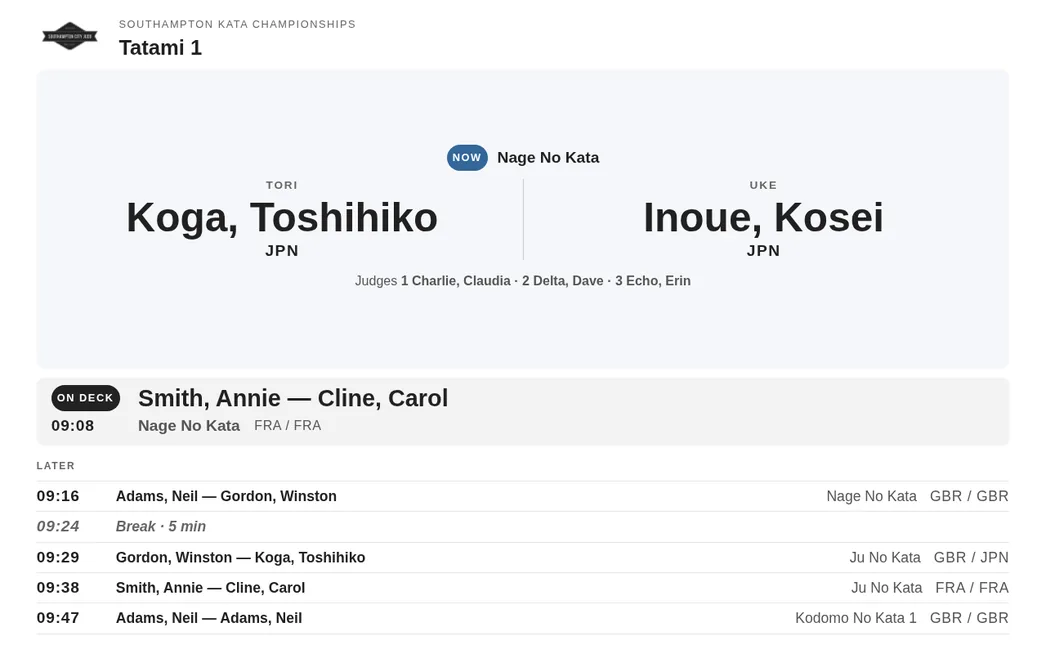
Open the announcer board on a hall screen. It shows the current tori and uke, the judging team, who is on deck with an estimated time, then the rest of the mat schedule. It updates in place. Same dark, zoom, and language handling as live results. No clerk menu.
Electronic scoresheets
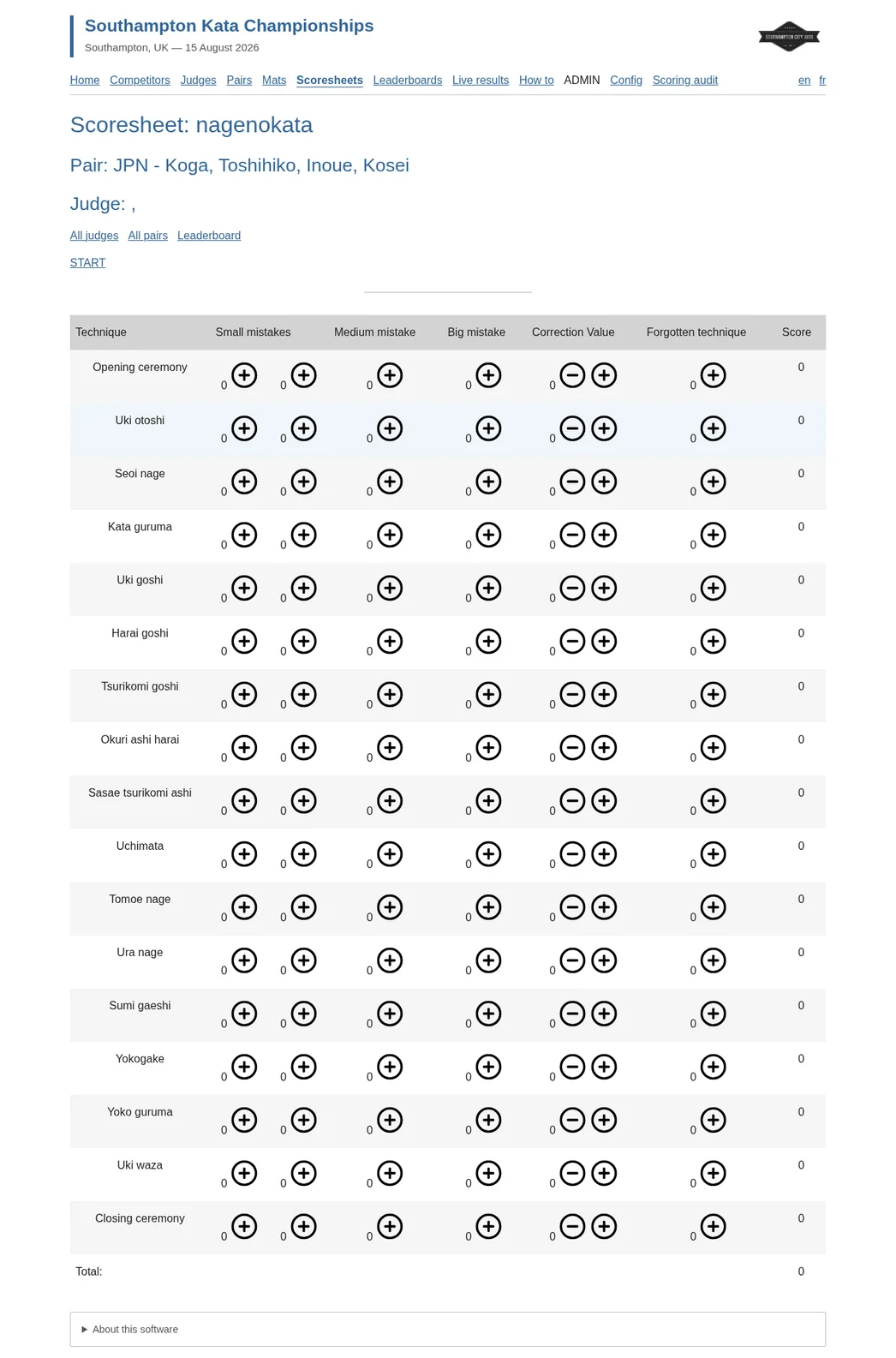
If a phone fails, the clerk scoresheets write the same scores. Open scoresheets, then kata, pair, and judge. The pair page lists the judges seated for that performance. Use +/− on each mistake column. The page total is that judge’s kata score.
Printable PDF pack
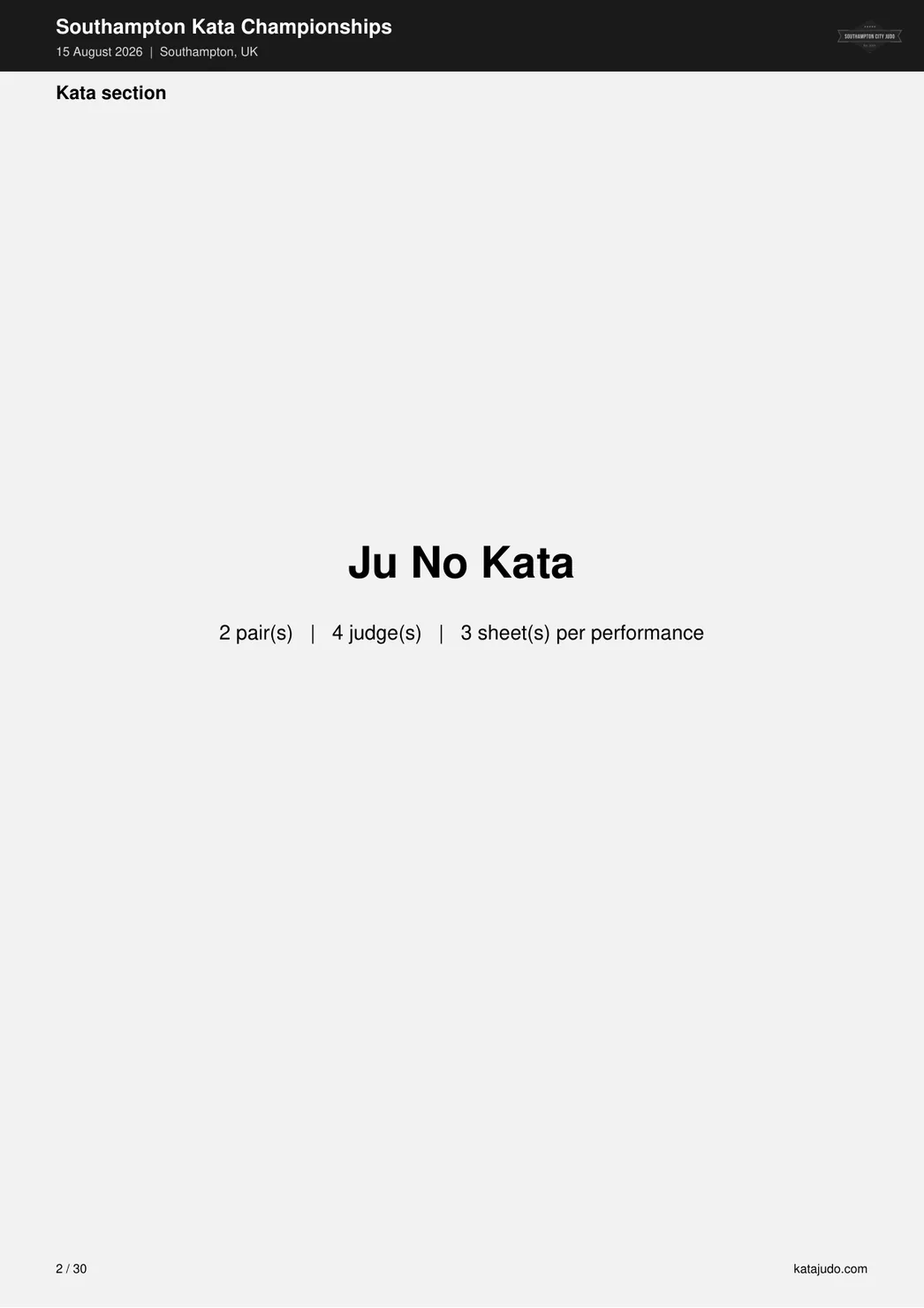
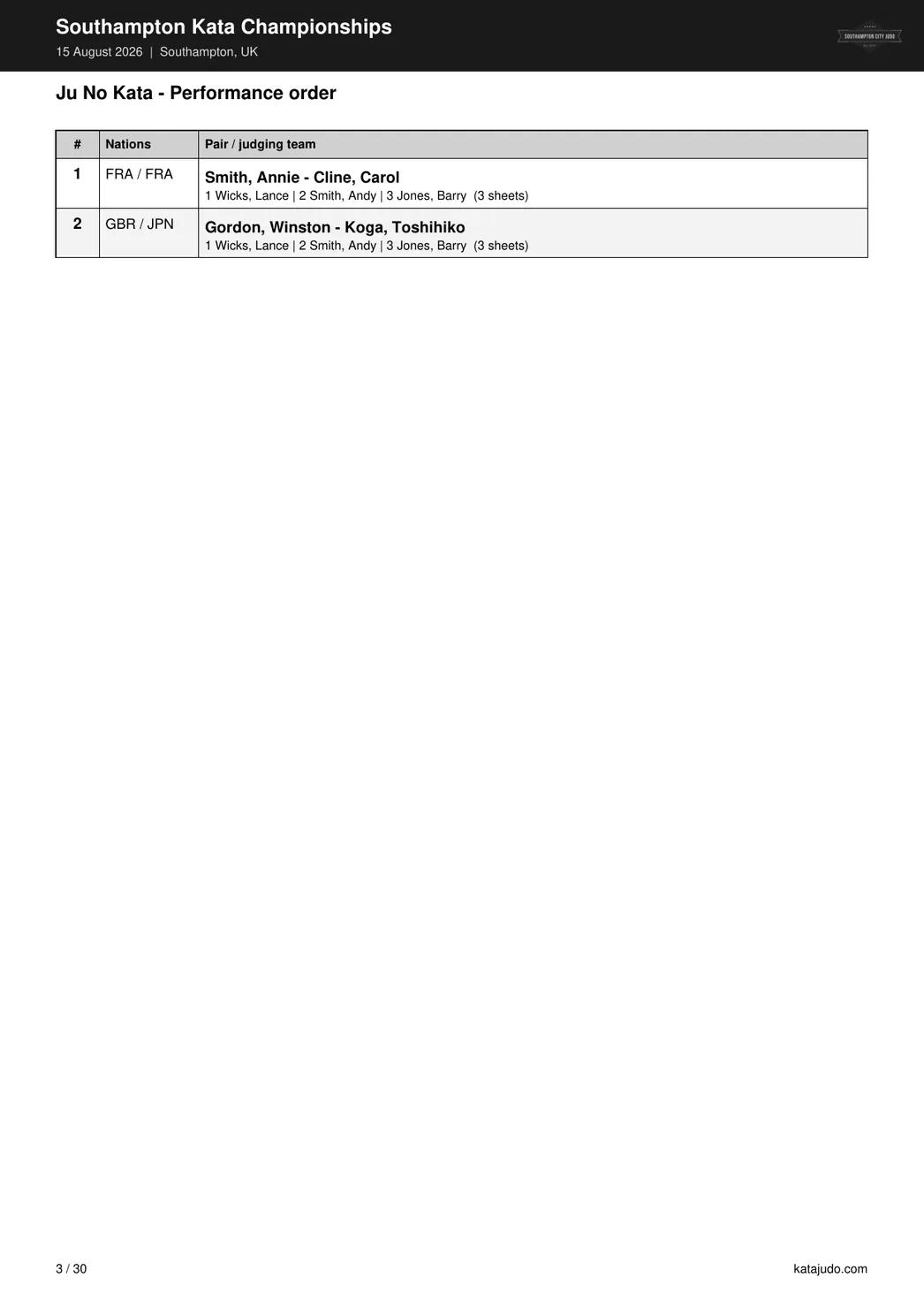
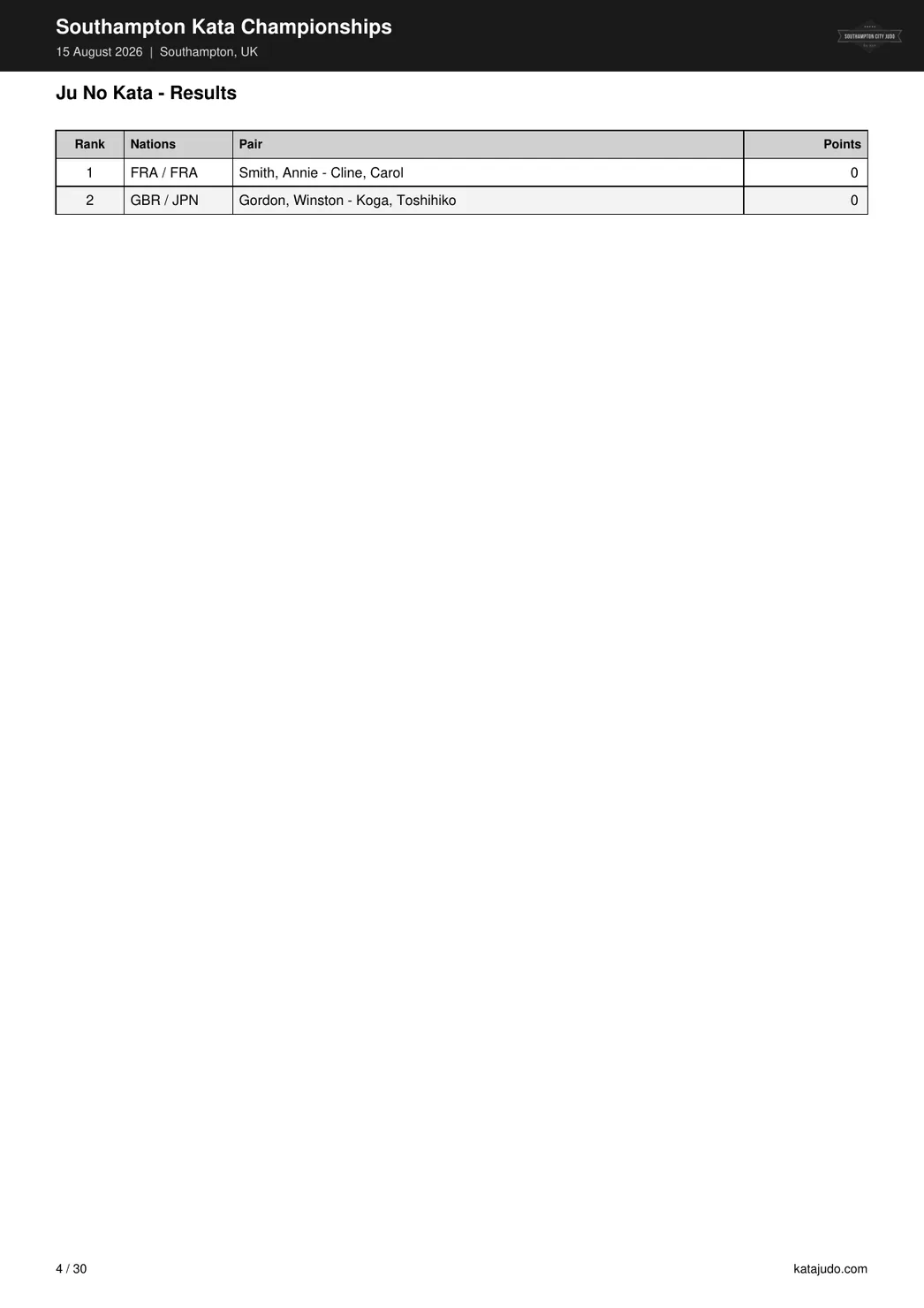
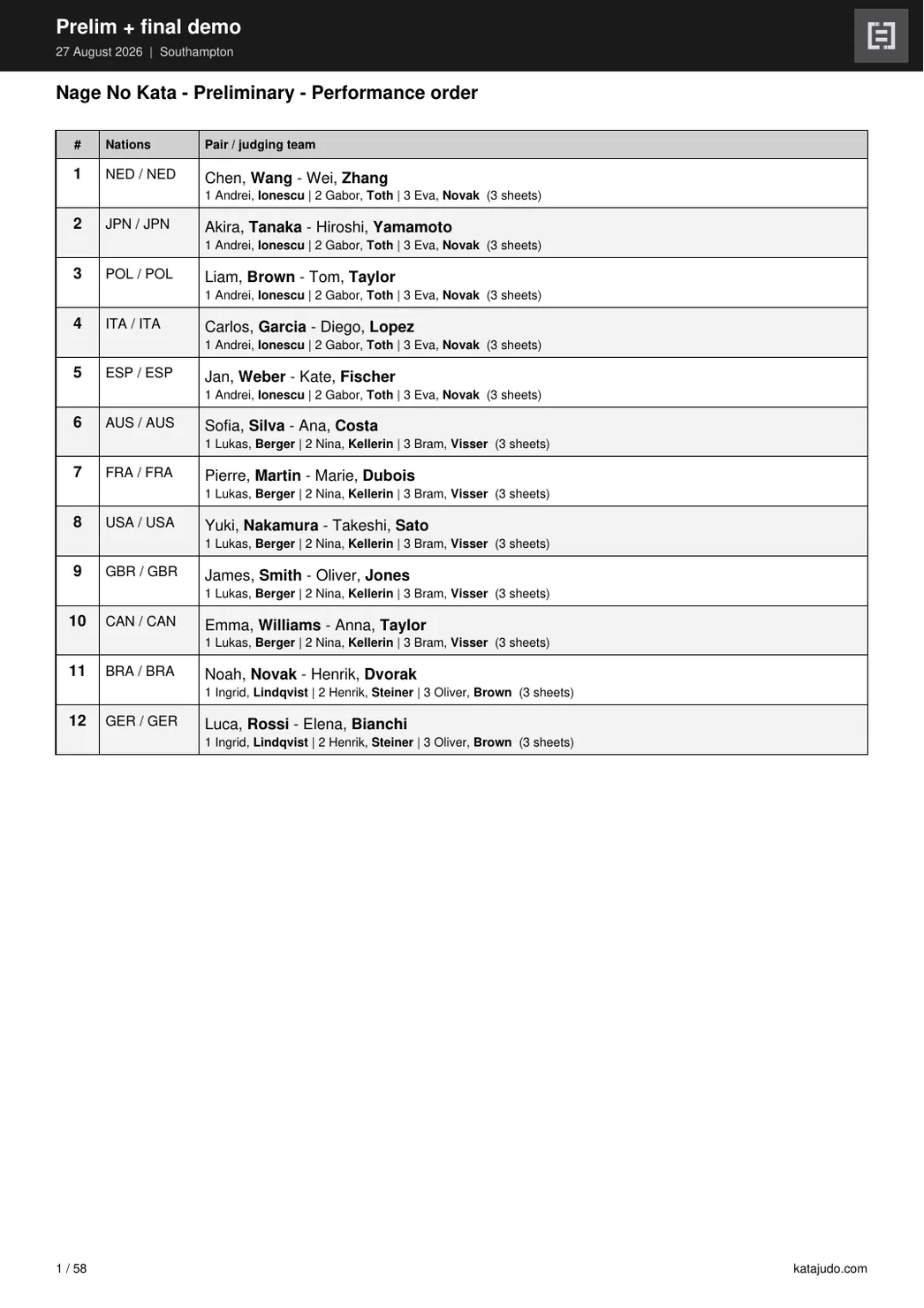
Download a pack for one kata or the whole day. Choose blank, in progress, completed, or all sheets. Force blank layout if you need empty paper after scoring has started. Each pack includes a cover, a divider per kata, performance order, results, and a pair×judge scoresheet with a checkbox grid, totals, judge and data-entry signature blocks, and the event logo in the header.
Large fields paginate order and results across extra A4 pages so every pair appears. After the final has started, a single-kata download adds a second block labelled Preliminary then Final — each with its own order, results, and scoresheets — in one file.

Live results
Project the ranking on a hall screen — large type, no clerk menu. Scores update in place as judges tap, including provisional points while a pair is still being scored, with an in-progress marker and progress %. The table scales to fit every row on a 1080p projector from rank 1, so a large preliminary field stays readable without scrolling. Small direct finals keep the jumbo type. During prelims the Advances column shows who would qualify; it hides on direct finals and after the final has started.
Open /results?rotate=1 to loop through kata; how long
each stays on screen is set in Config. Language is picked in Config
and remembered for the browser session; use
?theme=dark and ?zoom= like the tablets.
Leaderboards and CSV
Leaderboards are the same ranking for the clerk, including provisional totals and the in-progress marker while a panel is still scoring. After the final has started, switch between Preliminary and Final tabs; the prelim view keeps the Advances column. Download per-kata totals CSV (rank, country, pair, points) and technique-level CSV (per judge, per technique) for the round you are viewing.
Award ceremony
After a kata is scored, open the award ceremony from the same control console. The hall display steps through each kata, shows a title card, then reveals the ranked results with gold, silver, and bronze markers. The control deck lets you move to the next kata, jump to any kata in the event, and end the ceremony when finished.
Like the draw ceremony, the award display stays in sync over SSE and can be muted from the controller. It uses the same final or prelim rankings shown on the leaderboard, so the medals on screen match the official results.
Scoring audit
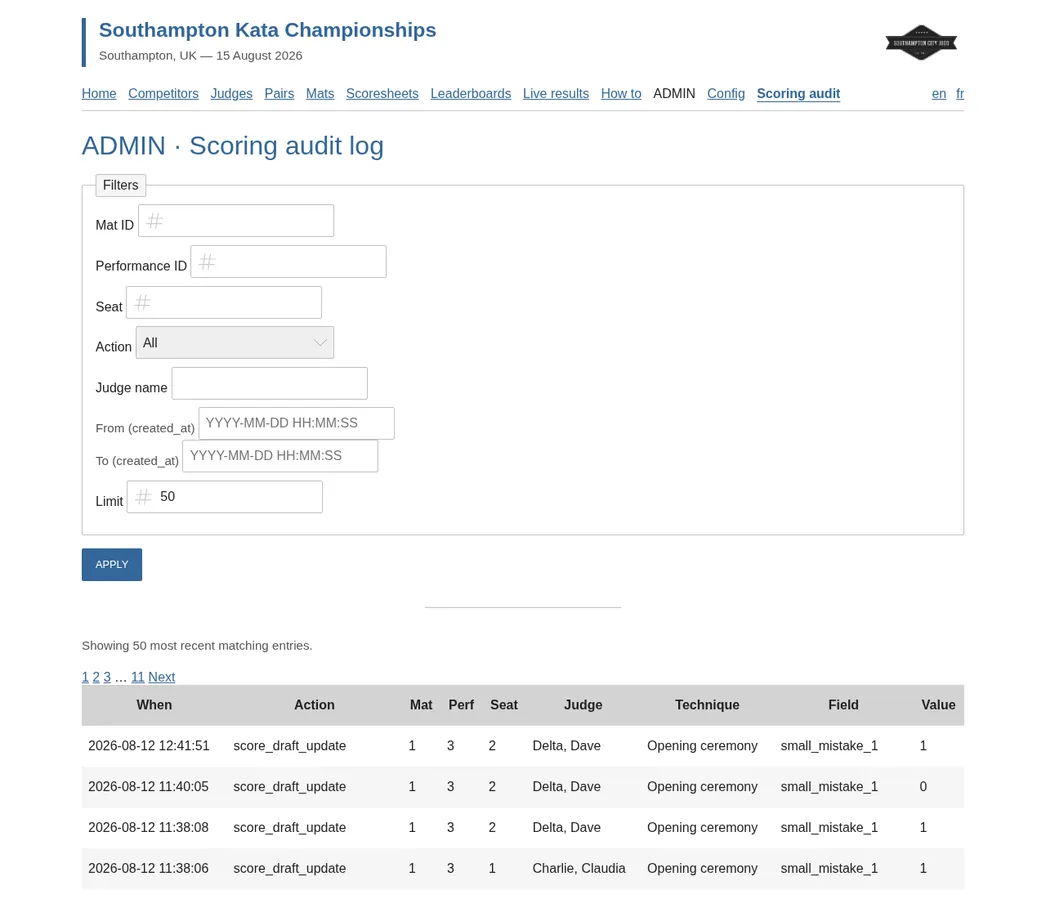
Under Admin, the scoring audit log records tablet taps, submits, and unsubmits. Filter by mat, performance, seat, action, judge, or time if you need to see what was marked and when.
Category progress
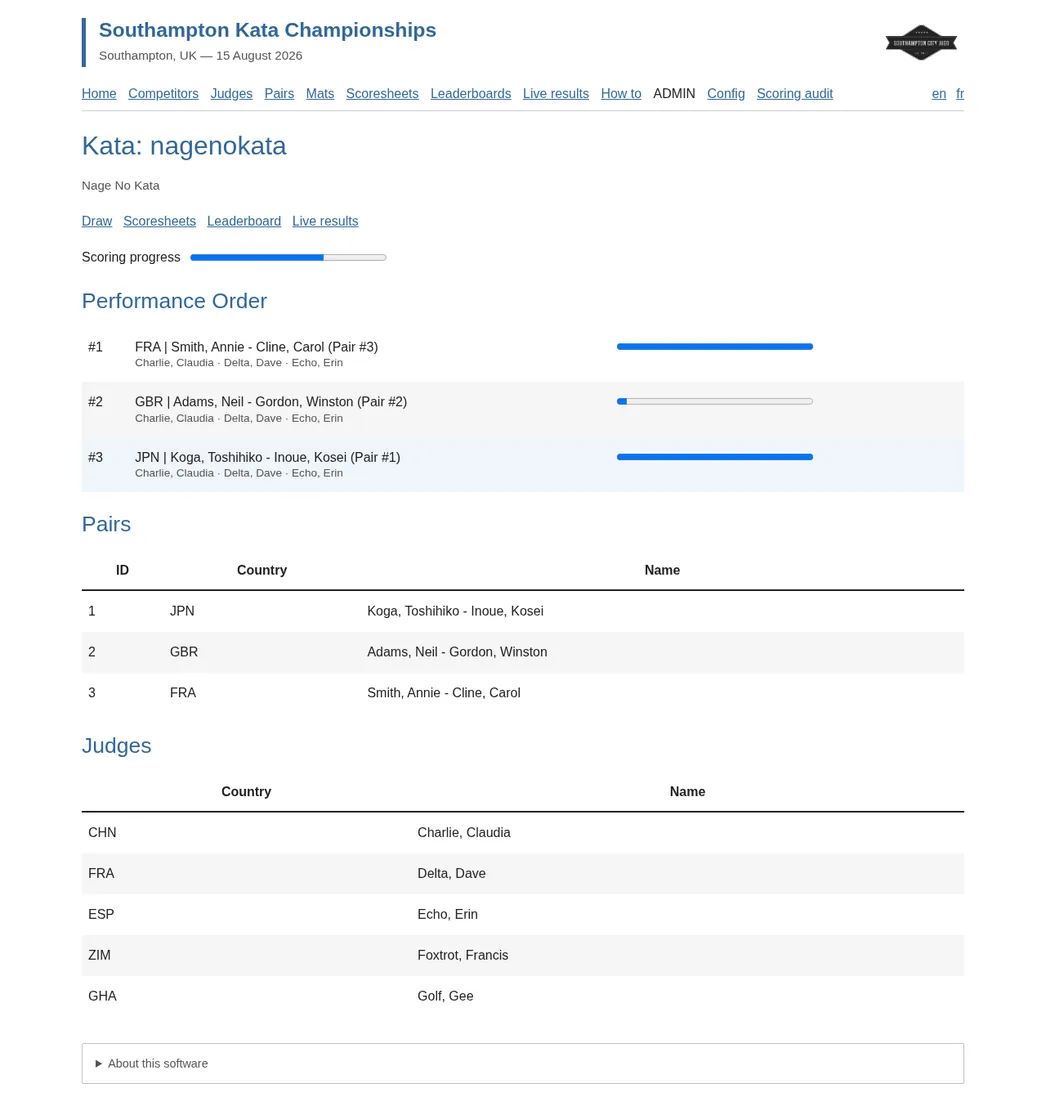
A summary view shows how far the category has progressed — useful for medals, announcements, and keeping the mat schedule moving.